
Getting Started Guide
Your guide to accessing, navigating, and getting support for your Chassi account.
1. Creating your account
Access to Chassi is managed by a Chassi Administrator. Once added, you’ll receive an invitation email from Chassi Services, noreply@chassi.com.
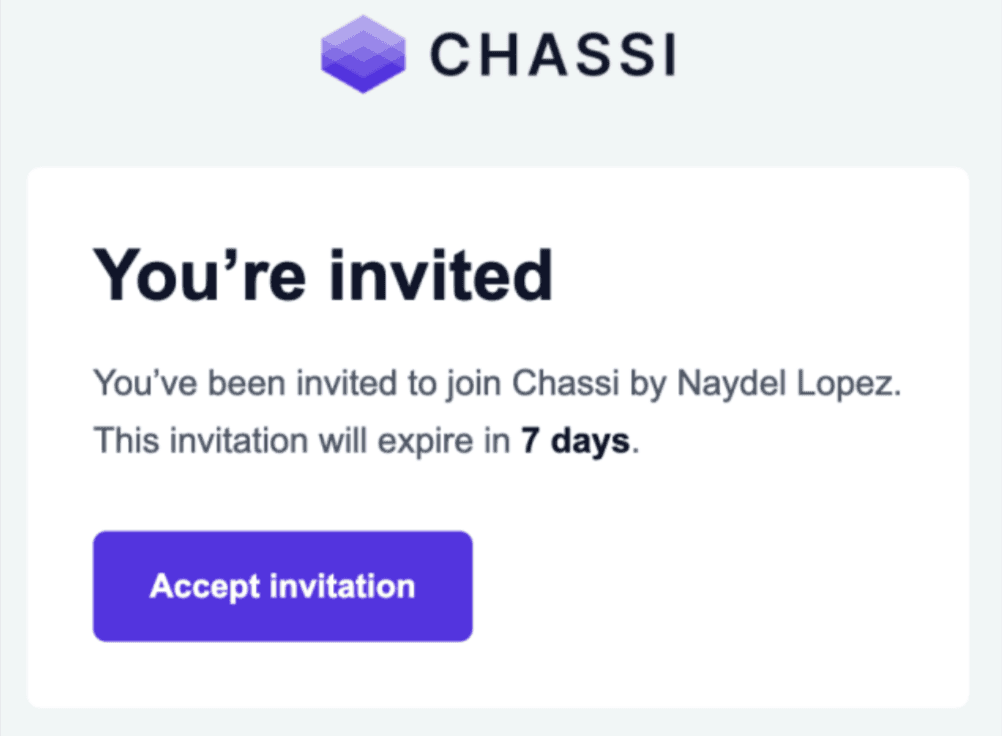
Steps to activate your account
1. Open the invitation email Look for an email from noreply@chassi.com with the subject line "Invitation to Chassi". |
2. Click "Accept Invitation" This opens the Chassi account setup page in your browser. |
3. Enter Details and Create Password Enter your information and create a password that meets the requirements. |
4. Verify Your Email After clicking Save, a 6-digit verification code will be sent to your email. Enter the code to complete setup. |
5. Log in Once verified, you’ll be automatically logged into Chassi. |
Check your spam or junk folder if you do not see the invitation within a few minutes. The invitation link expires after 7 days. For expired invitations or any issues, contact your Chassi point of contact, submit a support ticket, or email support@chassi.com.
2. Resetting your password
1. Go to the Chassi login page Navigate to your Chassi’s login page at https://app.chassi.com/login |
2. Click "Forgot your password" You will find this link below the password field on the login screen. 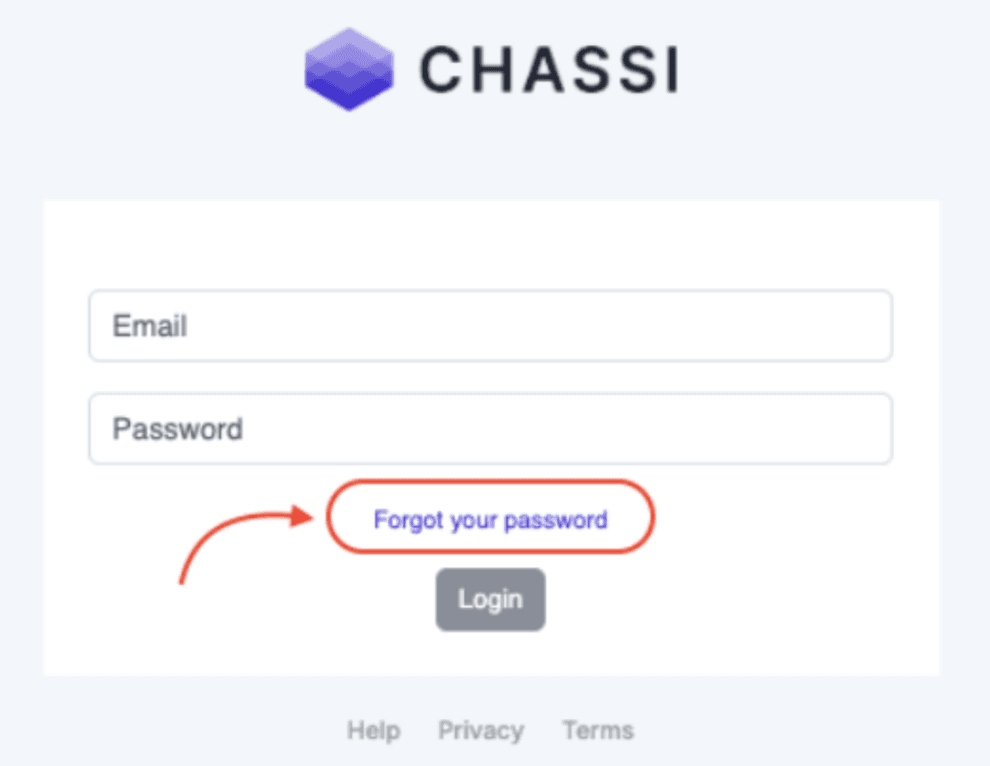 |
3. Enter your email address Use the email address associated with your Chassi account, then click "Next". |
4. Check your inbox You will receive an email with a password reset link. Open it and follow the on-screen instructions to create a new password. |
5. Log in with your new password Once your password is updated, you’ll be redirected to the login page. Enter your email and new password to access your account. |
The password reset link expires after 30 minutes. If you do not complete the reset in time, return to the login page and request a new link.
3. Navigating Chassi
When you log in for the first time, you may see "You currently don't have access to any modules. Please contact your Account Administrator." Your Chassi point of contact will grant you access to the appropriate modules.
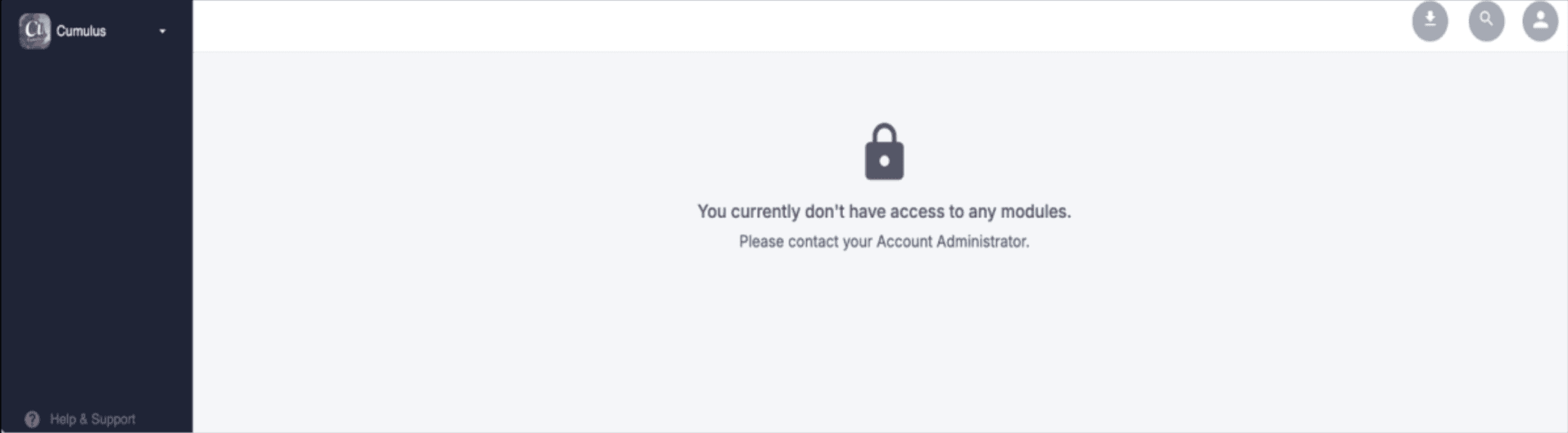
How to access your module(s)
1. Your Chassi point of contact will grant you access to the appropriate modules If no module access is provided shortly after logging in, contact your Chassi point of contact for assistance. |
2. Refresh the page Once access has been granted, your modules will appear in the sidebar menu (top-left). Click on the module to access it. 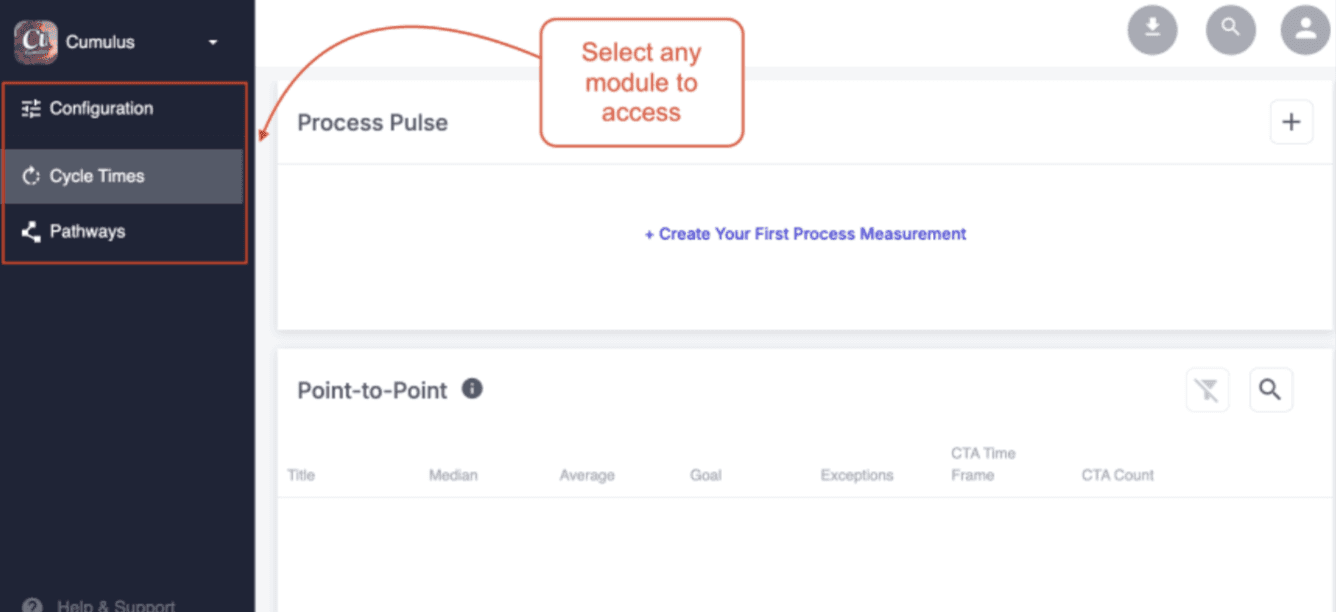 |
4. Submit a support ticket
Use the Help link to submit a support ticket anytime you need assistance, our team will be notified and follow up promptly.
1. Access Help A. “Help” on the login page (below the login button) |
2. Open the support form Click “Help” or “Help & Support” to open the support form. |
3. Fill out the required information Complete all required fields, including your name, email address, and any relevant details about your question or issue. |
4. Describe your question or issue In the message field, provide as much detail as possible to help our team assist you efficiently. |
5. Submit your request Click “Submit”. Once submitted, our team will receive a notification and follow up with you directly. You’ll also receive a confirmation email. |
Need additional help? Contact your Chassi point of contact.